How VPNs Stop Websites From Tracking You (Step-By-Step, With Real Leak Fixes)
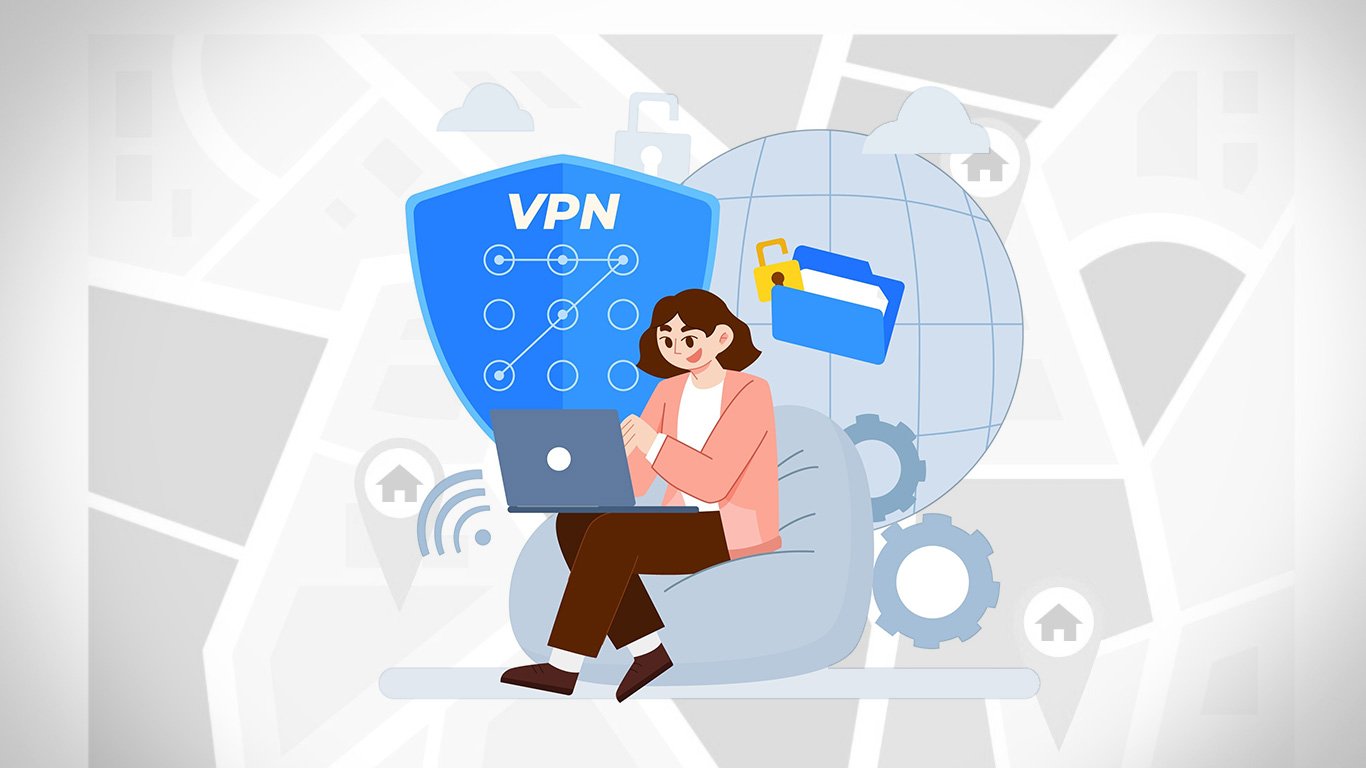
Websites, apps, ad networks and ISPs build a profile of you using your IP address, cookies, hidden identifiers and device “fingerprints.” A VPN breaks the most powerful piece of that system — IP-based correlation — and when combined with a few browser tweaks, you can shut down most real-world tracking without breaking your favorite sites. This guide explains exactly how tracking works, what a VPN does and doesn’t stop, and the quick changes that eliminate the remaining leaks.
1) What “Tracking” Actually Means in 2025
A decade ago, “tracking” mostly meant third-party cookies. Today it’s a multilayered system that mixes several data sources: IP address, device and browser characteristics (fingerprints), account logins, invisible pixels, advertising SDKs inside apps, and network metadata like DNS logs. Any one piece can look harmless. Combined, they create a pretty accurate picture of who you are and what you do online.
The most powerful of these signals is still your public IP address. It links requests from all your devices on your home network, reveals rough location, and gives advertisers a way to recognize you even with cleared cookies. That’s where a VPN is uniquely useful: it swaps your home IP for a shared VPN server IP, so your traffic blends with thousands of other users.
Common Tracking Signals
- IP address & ASN: ties sessions, reveals approximate city/ISP.
- DNS queries: show which hostnames you resolve, even on HTTPS sites.
- Cookies & storage: IDs stored by sites and ad partners.
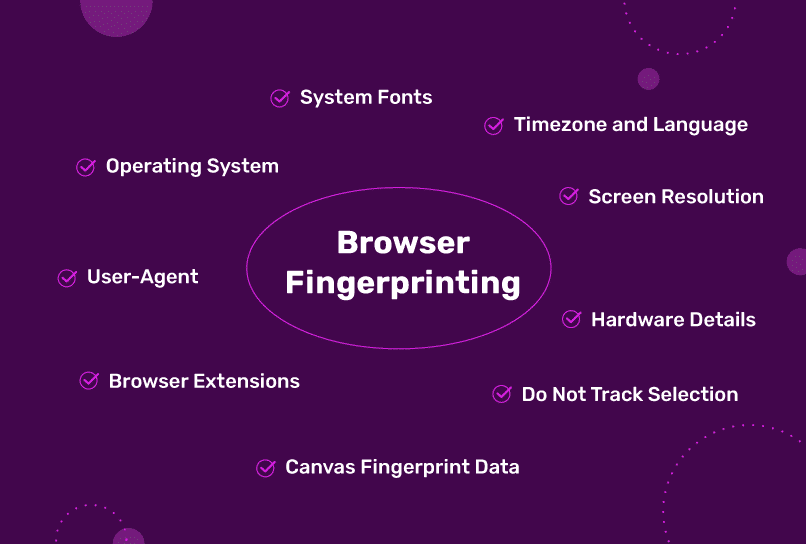
- Browser fingerprint: fonts, canvas, WebGL, timezone, language, screen, GPU.
- Referrers & link tags: UTM,
fbclid,gclid, and click IDs. - Account status: staying logged in lets platforms connect your activity to your profile.
Why It’s Hard to “Go Invisible”
- Multiple small signals create a unique combination.
- Many apps include advertising SDKs you can’t easily see.
- Websites fingerprint passively, without asking permission.
- Different sites trade identifiers through redirects and pixels.
The goal isn’t perfect anonymity; it’s reducing the strongest signals so you blend into a crowd.
2) How a VPN Reduces Tracking
A Virtual Private Network (VPN) creates an encrypted tunnel from your device to a VPN server. To the websites you visit, your traffic appears to come from the VPN server’s IP — not your home IP. To your ISP, your traffic looks like encrypted packets going to the VPN server — not to the individual sites you load. If your VPN also handles DNS, the ISP loses visibility into the hostnames you resolve.
What a VPN Blocks
- IP-based tracking and geotargeting.
- ISP-level snooping on DNS and browsing history (when VPN handles DNS).
- Local network eavesdropping on public Wi-Fi (airports, cafés, hotels).
- Simple price discrimination based on region/IP.
What a VPN Does Not Block by Default
- Logged-in tracking by platforms you’re signed into.
- Browser fingerprinting and super-cookies.
- WebRTC and IPv6 leaks if your device allows them outside the tunnel.
- Malicious extensions, telemetry from apps, or compromised devices.
You’ll fix these with the browser and OS steps later in this guide.
The important takeaway: VPNs remove the biggest correlation anchor — your IP. Alone, that’s a big privacy upgrade. With a few more tweaks, you can block the remaining leaks so everyday browsing feels the same, just less exposed.
3) The Limits: Where VPNs Don’t Help (and How to Patch the Gaps)
A VPN doesn’t change what you do while signed in to accounts, nor does it magically erase all device uniqueness. Some sites also apply server-side techniques to link sessions using obscure signals. That doesn’t mean privacy is hopeless — it just means you need a realistic plan.
Gap #1 — Logged-In Platforms
If you’re logged into a platform (Google, Facebook, X, Reddit), your actions are tied to your account regardless of IP. Ads inside those platforms are targeted using your on-platform activity.
- Use separate browser profiles or containers (work vs personal vs research).
- Consider email aliases for sign-ups to avoid cross-site linking.
- Log out for sensitive searches that you don’t want attached to a profile.
Gap #2 — Fingerprinting
Even without cookies, websites can combine small details (fonts, GPU, screen, time zone) to estimate a unique signature.
- Use browsers with anti-fingerprinting (Brave, Firefox with ETP Strict).
- Avoid niche extensions and custom fonts across profiles.
- Reduce “entropy” by staying closer to default settings on your main profile.
Gap #3 — DNS / WebRTC / IPv6 Leaks
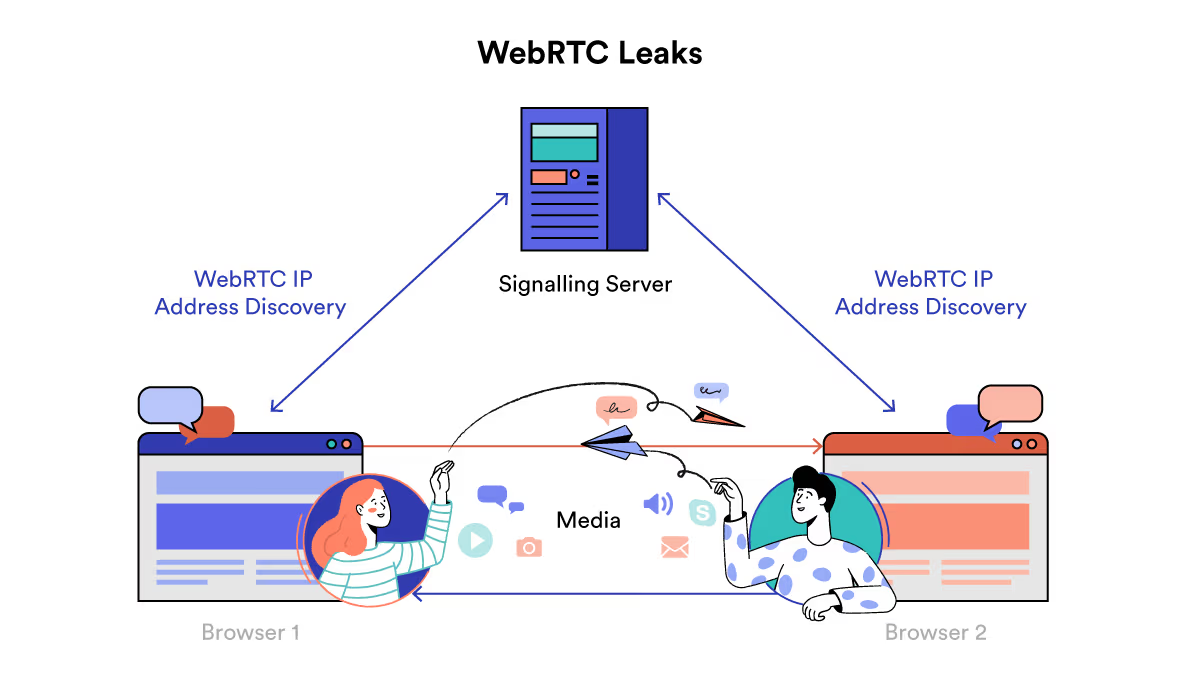
Some operating systems or apps can bypass the VPN tunnel for DNS or WebRTC traffic. IPv6 can also leak on VPNs that only tunnel IPv4.
- Use your VPN provider’s DNS; enable the kill switch.
- Disable WebRTC leaks or restrict to default route.
- Prefer VPNs with proper IPv6 support or disable IPv6 at the OS level.
Gap #4 — Telemetry & Extensions
Shady browser extensions, “free antivirus,” and some apps ship with tracking SDKs.
- Audit installed extensions and remove anything you don’t absolutely need.
- Stick to reputable privacy tools: uBlock Origin, Privacy Badger, ClearURLs.
- Keep the OS and browser up to date to close known issues.
4) Step-By-Step: Private Setup That Actually Works
The following workflow is the shortest path to a private, usable setup that doesn’t feel like a research project. You’ll start by measuring your current exposure, then enable your VPN correctly, then harden the browser, and finally re-test so you can confirm the improvement.
Step 1 — Run a Baseline Test
Before touching settings, capture what leaks right now:
- Your public IP and ISP/ASN (geolocation too).
- DNS resolver being used.
- WebRTC local and public candidates.
- Whether IPv6 is active and visible.
Use our tools: IP Checker, DNS Leak Test, WebRTC Test, IPv6 Test.
Step 2 — Enable the VPN With Private DNS
Open your VPN app and choose a nearby server for speed. Turn on the kill switch and ensure the app forces its own DNS.
- Protocol: WireGuard or OpenVPN UDP.
- Features: kill switch, DNS leak protection, auto-reconnect.
- Start on boot so you’re protected before the first browser request.
Step 3 — Harden the Browser
- Set tracking protection to Strict (Firefox) or use Brave.
- Block third-party cookies and clear site data on exit for your “research” profile.
- Install uBlock Origin, Privacy Badger, and ClearURLs.
- Disable WebRTC leaks (or require the VPN interface only).
You can keep a “convenient” profile for everyday logins and a separate “clean” profile for sensitive searches.
Step 4 — Re-Test & Compare
Run the exact same tests and confirm:
- Public IP now shows the VPN location and ASN.
- DNS queries resolve via your VPN’s resolver.
- No WebRTC local IP leak.
- IPv6 is either tunneled or not leaking.
5) Before vs After: Simple Tests You Can Run
The table below is an example of what you should see when you follow the steps above. Replace the values with your own screenshots to document changes.
| Check | Before (No VPN) | After (VPN + Hardened) | Expected Outcome |
|---|---|---|---|
| Public IP / ASN | Home IP • Local ISP | VPN IP • VPN ASN | IP masked and location shifted |
| DNS Resolver | ISP DNS resolvers | VPN’s private DNS | Queries hidden from ISP |
| WebRTC Candidates | Local/private IP visible | No local candidate exposed | No WebRTC leak |
| IPv6 Visibility | Public IPv6 visible outside tunnel | Disabled or tunneled | No IPv6 leak |
| Fingerprint Entropy | High (very unique) | Lower (closer to common) | Harder to track without cookies |
6) Pro Tips: Fingerprint Reduction Without Breaking Sites
Many “privacy” guides become unusable fast because they disable half the web. These tips aim for maximum privacy at minimal inconvenience so you keep using your favorite sites normally.
Use Two Profiles
Keep one browser profile for regular, logged-in life (YouTube, WhatsApp Web, email) and one “clean” profile for research, price checking or anything you don’t want attached to a single identity.
Choose the Right Browser
Brave has strong default protections; Firefox with Enhanced Tracking Protection (Strict) is excellent too. Chrome can work, but you’ll do more manual tweaks and should keep extensions minimal.
Block Third-Party Cookies, Not All Cookies
Blocking everything breaks logins and carts. Blocking third-party cookies avoids most tracking while preserving usability.
Limit Extensions
Install only what you recognize and trust. A single data-harvesting extension can undo good privacy elsewhere.
Handle WebRTC Correctly
Disable WebRTC local IP exposure or bind it to the VPN interface. This one change prevents a common leak.
Mind the “Little Stuff”
Turn off link-tracking parameters where supported, use email aliases for sign-ups, and avoid unique fonts or UI scaling on your “clean” profile that could raise fingerprint entropy.
7) Frequently Asked Questions
Does a VPN make me completely anonymous?
Can my ISP still see which websites I visit with a VPN?
Why do I keep seeing targeted ads even with a VPN?
Are free VPNs safe?
Will a VPN slow my internet?
What’s the best protocol?
8) Testing Policy & Repeatability
All VPNTrackr tests are run on fresh browser profiles with default settings, then with recommended privacy extensions. We capture IP, DNS, WebRTC and IPv6 behavior before and after enabling the VPN and record fingerprints to estimate entropy changes. Tests run on home broadband and public Wi-Fi to reflect real usage, with screenshots archived alongside timestamps and ASN/POP notes.
Whenever possible, we avoid “lab” networks that hide problems you’ll face on normal ISP connections.
Verdict: A VPN Breaks IP-Based Tracking — Finish the Job With Browser Hygiene
If you only do one thing for privacy, use a trustworthy VPN with private DNS and a reliable kill switch. That single step collapses the strongest tracking vector: your IP address. Add a clean browser profile with strict tracking protection and a few carefully chosen extensions, and most real-world tracking becomes noisy, unreliable and not worth the effort for advertisers.

James Whitmore is a security analyst and network performance tester at VPNTrackr. He focuses on leak testing, protocol performance and privacy UX — translating complex topics into practical steps that work on real networks.