Best Password Managers & 2FA Tools
Every major online breach today, from hacked Instagram accounts to stolen banking logins, begins with weak passwords. Even in 2025, the most common passwords are still qwerty, password123, names, birthdays, and mobile numbers. Attackers don’t “hack” these accounts — they simply guess or use leaked databases. A single leaked password can unlock everything: email, social media, digital wallets, shopping apps, subscriptions, and even work logins.
Password managers exist to end this problem permanently. Instead of remembering hundreds of passwords, you remember only one master password. The manager stores the rest inside a secure, encrypted vault and auto-fills them whenever you need to log in. Every password becomes long, random, and impossible to guess.
Why weak or repeated passwords are dangerous
Most people reuse the same password across multiple sites. If a small website is hacked, attackers test that same email and password on Gmail, PayPal, Facebook, Apple ID, Netflix, Amazon, and banking apps. This method is called credential stuffing. Bots can check thousands of accounts per minute. If you reused your password even once, your security is already broken.
Here is how attackers take over accounts:
- They buy leaked passwords from breach forums
- Use bots to test the same password across major platforms
- Once inside email → they reset passwords for other accounts
- They lock you out and sometimes blackmail or steal money
Your entire digital identity depends on one thing: how strong your passwords are.
How password managers protect you
A password manager generates and stores unique passwords such as:
hY$4zT@9mQW1kN3pV7
You do not type it or remember it. The vault auto-fills it only on the correct website, so phishing tricks also fail.
- Every account gets a different, unbreakable password
- Auto-fill protects against keyloggers or shoulder-surfing
- Vault warns if a website you use is hacked
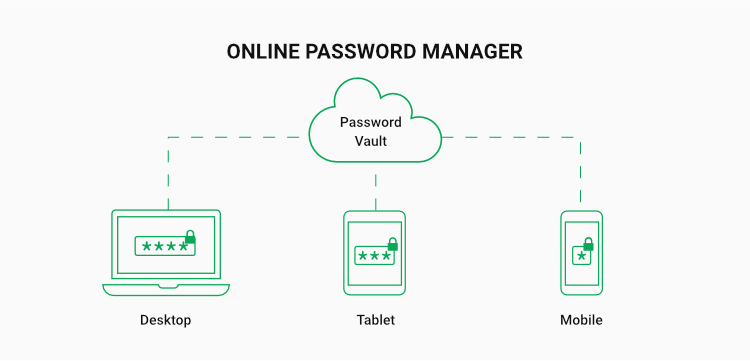
- Passwords sync securely across devices
- You can safely share Wi-Fi or Netflix logins without revealing the password
Top password managers (educational overview with images)
Below are trusted password managers used worldwide by security researchers, companies, and privacy-focused users. Each one solves the same problem, but with different strengths.
Bitwarden
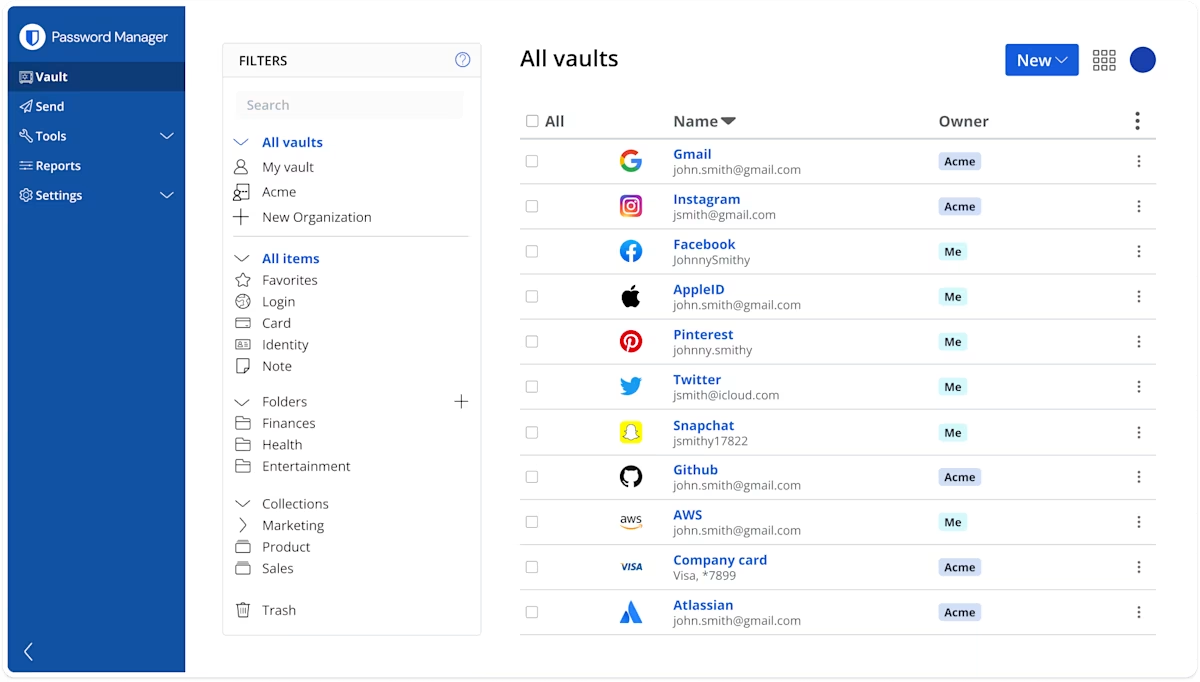
Bitwarden is fully open-source. Security researchers can publicly inspect its code to verify there are no backdoors. This gives Bitwarden a strong reputation in the cybersecurity community. It supports cloud sync, offline vaults, and even self-hosting — meaning advanced users or companies can run their own Bitwarden server privately.
Features include:
- Zero-knowledge encryption (company cannot see your vault)
- Browser extensions with auto-fill
- Breach monitoring
- Secure sharing for family or work
- Two-factor support
1Password
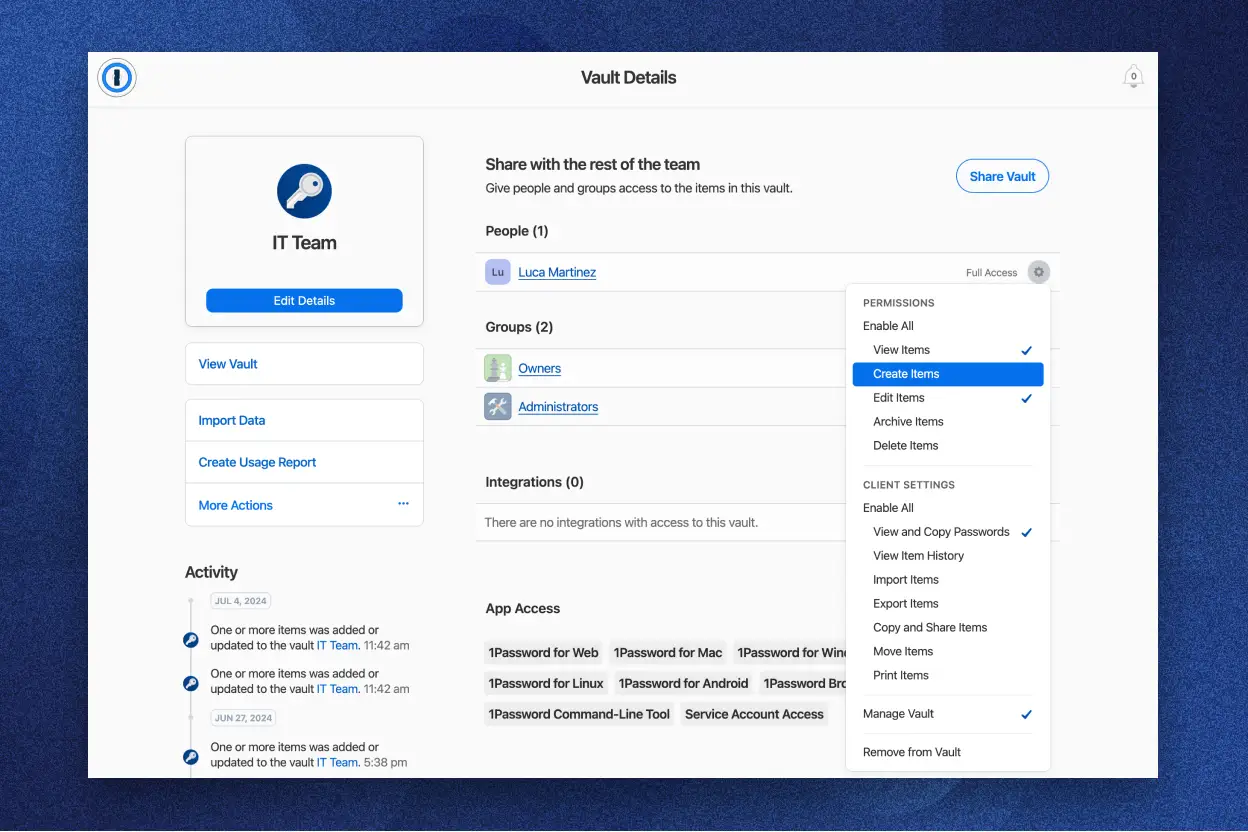
1Password is popular among families and businesses. The interface is clean, making it easy for beginners to store logins, cards, IDs, passports, and private documents. Its Watchtower feature alerts you when a password is weak or a website has been breached. 1Password also supports physical 2FA keys like YubiKey, which adds strong protection.
Dashlane
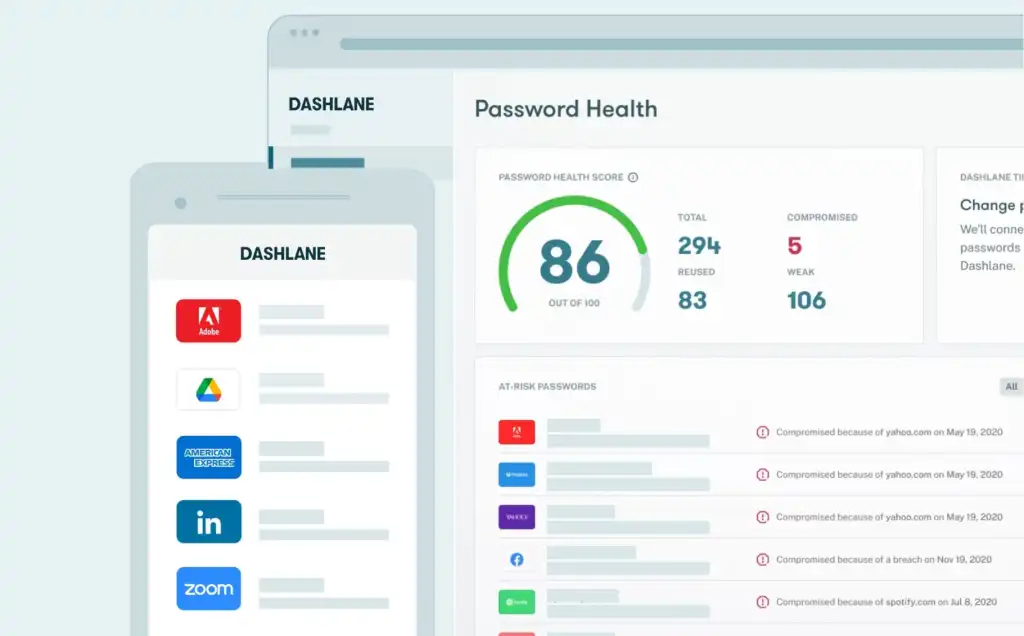
Dashlane includes a fast autofill engine, a built-in password changer, and a digital wallet for online payments. Some users like Dashlane because it can automatically replace weak passwords with stronger ones for supported websites, reducing effort for beginners.
NordPass
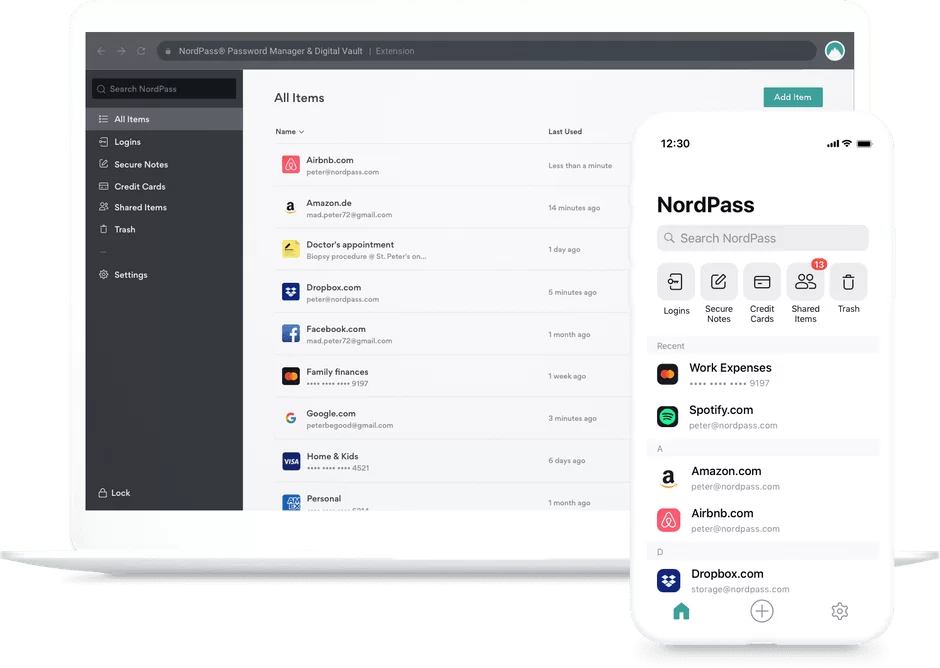
NordPass is built by the same security team behind NordVPN. It focuses on simplicity: generate strong passwords, store them, auto-fill them, and sync across devices. NordPass also checks for weak or reused passwords and alerts you if a website you use gets hacked.
Keeper
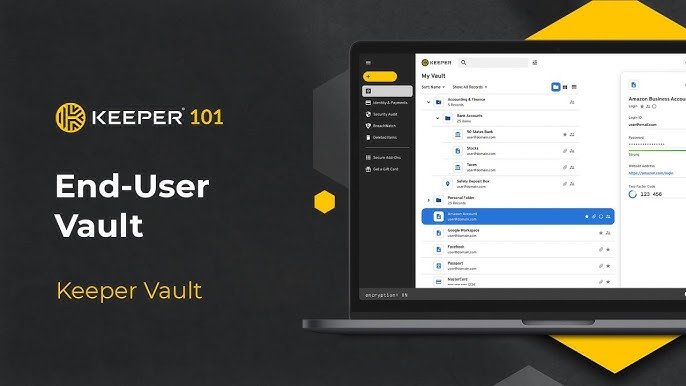
Keeper is widely used in organizations and government departments because of its advanced security features. It includes encrypted file storage, team password sharing, and role-based permissions. For personal use, it works just like any password manager with strong encryption and auto-fill.
Why strong passwords matter mathematically
Hackers can crack short human-made passwords using dictionary attacks. But a 20-character random password with numbers, uppercase, lowercase, and symbols takes longer than the age of the universe to brute-force.
Example of a truly secure password:
gR!7m#N9zP4uVe2@qYsL
Humans cannot remember this, but password managers can, and they auto-fill it instantly.
Why auto-fill is safer than typing
When you type passwords manually:
- Keyloggers can record keystrokes
- People near you can see the screen
- Fake login pages can trick you
Auto-fill only works on the correct domain. If someone sends a fake Gmail page like gmai1-login.com, the password manager will refuse to fill anything. This alone stops many phishing attacks.
Why 2FA is the perfect second layer
Even if a hacker stole your password somehow, 2FA blocks them. When 2FA is enabled, logging in requires both:
- Your password
- A code from your phone or hardware key
Without that second code, attackers cannot break in.
Password managers remove human weakness from security. No more remembering passwords, typing passwords, or reusing the same password everywhere. In Part 2 we will explain cloud sync vs offline vaults, the difference between authenticator apps and SMS 2FA, and how password managers detect breached accounts.
Outbound link for reader trust:
You can check an in-depth educational overview on
Have I Been Pwned,
a website used worldwide to check leaked passwords.
Cloud sync versus offline vaults
Password managers offer two main ways to store vaults: encrypted cloud syncing or local storage. Both are secure, but they serve different kinds of users. Cloud syncing is the simplest for daily life—you unlock the vault and your logins appear instantly on phone, laptop, or tablet. The vault is encrypted before uploading, so even if someone accessed the cloud storage, they cannot read anything without your master password.
Some people prefer offline vaults, especially privacy enthusiasts or IT professionals. Software like Bitwarden and KeePass allow vault files to stay only on your device. This option removes cloud dependency, but requires responsibility: if the device breaks or resets, and there is no backup, the vault is gone forever. Offline storage gives the highest control, but cloud sync offers the highest convenience.
Why browser password storage is risky
Browsers like Chrome, Firefox, and Safari can store passwords—but they are not built for strong security. Browser sync means anyone who accesses your Google or Apple account could download all saved passwords at once. Browsers also lack detailed breach alerts, password health checks, and encrypted sharing.
A dedicated password manager provides:
- Locked vault that requires biometric or master password
- Auto-fill that refuses to work on fake websites
- Warnings when websites you use are breached
- Secure password sharing without exposing text
- Encrypted notes, IDs, cards, and wallet info
Two-factor authentication tools
Once passwords become strong and unique, the next layer is two-factor authentication (2FA). Even if someone steals a password, they cannot log in without a second confirmation, usually a time-based code generated on your phone.
Authenticator apps
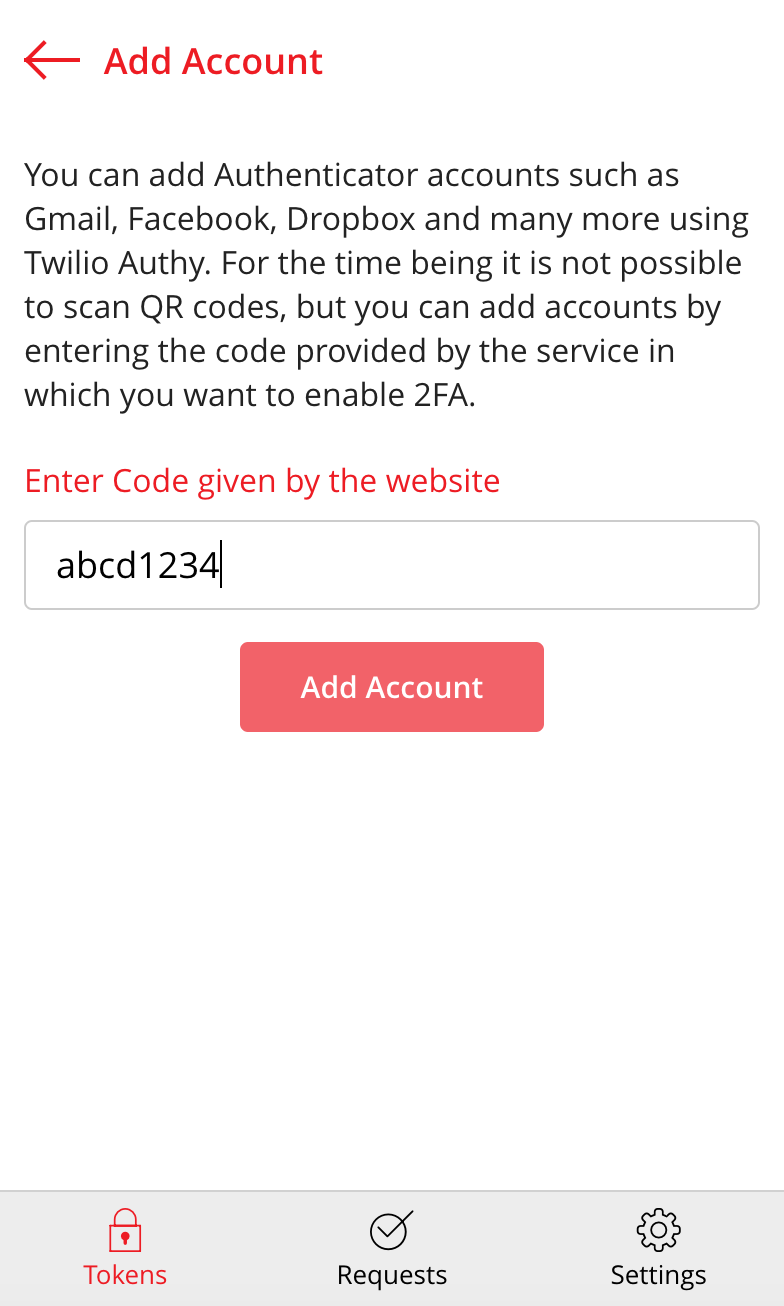
Apps like Authy, Google Authenticator, Microsoft Authenticator, and Bitwarden Authenticator generate codes offline. The codes rotate every 30 seconds and cannot be reused. Since these codes are stored on your device, an attacker would need physical access to your phone to break in.
- Works without internet
- Faster than SMS
- Blocks password-only attacks
Hardware keys for the highest protection
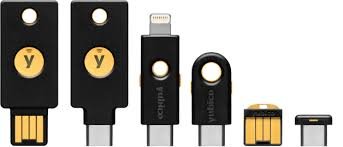
Hardware security keys (like YubiKey or Google Titan) are physical devices you tap or insert to confirm login. Even if a hacker has your password, they cannot fake or copy a hardware key. Some organizations and cybersecurity professionals use hardware keys for banking, crypto wallets, cloud servers, and company dashboards.
SMS 2FA (better than nothing)
SMS 2FA is common, but vulnerable. Phone numbers can be stolen using social engineering or SIM swap attacks. For everyday accounts it still helps, but authenticator apps or hardware keys are safer.
How password managers stop phishing automatically
Phishing attacks use fake login pages to steal passwords. They look identical to the real website, and many people fall for them. A password manager checks the website domain before auto-filling a password. If the domain is even slightly different, it refuses to fill anything. That alone prevents thousands of attacks without needing technical knowledge.
Security audits and breach alerts
Many modern password managers scan for leaked databases. If a service you use gets hacked, the vault alerts you and recommends changing that password. This is extremely useful because news of breaches does not reach everyone, but password managers quietly monitor and warn you in the background.
Backing up your vault safely
A password manager becomes your digital identity, so it must be backed up properly. The safest setup includes:
- A strong master password you can memorize
- Biometric unlock on phone or laptop
- Recovery codes stored offline
- Emergency access for a trusted person (optional)
Recovery codes are extremely important. They are printed or written once, and kept somewhere safe. If the master password is forgotten, recovery codes can unlock the vault. Without them, the vault cannot be opened—even the company cannot help. This is why password managers are trusted: there is no backdoor.
Things to avoid
Fake password managers exist. Attackers sometimes upload “free vault apps” designed to steal logins. Safe services always have:
- A real website and documented security policy
- Reviews from security experts
- Source code audits or public transparency
- Clear company ownership
No-name apps, extensions from unknown developers, or apps asking for suspicious permissions should never be trusted.
Password hygiene habits that strengthen every account
- Use unique passwords everywhere
- Enable 2FA on important accounts (email, banking, socials)
- Never save passwords in Notes or messaging apps
- Do not share passwords in text form—use secure sharing
- Change weak or old passwords when the vault recommends it
Once a password manager is installed, security becomes automatic. Strong passwords are generated for every website, 2FA codes protect your logins, alerts warn you of dangers, and auto-fill avoids phishing. Daily life becomes easier and safer at the same time.
Choosing the right password manager
All password managers improve online safety, but different profiles prefer different features:
- Beginners — simple auto-fill and cloud syncing
- Families — shared vaults, secure sharing links
- Remote workers — multi-device sync, breach scanning
- IT and cybersecurity professionals — offline vaults, hardware keys, audits
What truly matters is transparency. Services that publish audits, security papers, and encryption details show they are serious about protection. The industry standard is end-to-end encryption with zero-knowledge architecture, meaning nobody except you can unlock your vault.
How 2FA and password managers work together
When both are used, the security model becomes extremely strong. Even if a hacker steals one layer, the second layer blocks them. For example:
- If a password leaks → the account still needs a 2FA code
- If a phone is lost → the vault still needs a master password
- If a phishing link steals a password → auto-fill won’t work on fake sites
Most digital identity theft happens because people reuse passwords or store them in unsafe places. A password manager fixes both problems permanently.
Good habits for long-term protection
Security is not only about tools; small habits make a big difference:
- Update software regularly to remove old vulnerabilities
- Do not share screenshots of passwords or QR codes
- Use biometric unlock on personal devices
- Keep recovery codes somewhere private and offline
- Lock devices automatically when not in use
These habits are simple but powerful. Modern cyber-attacks are automated and fast. A password manager gives you a strong defense without needing technical skills.
Final safety checklist
- Create one strong master password only you can remember
- Enable 2FA for important accounts: email, social media, banking
- Let the manager generate passwords for new websites
- Replace old or weak passwords when health checks suggest it
- Review breach alerts and take action quickly
If a vault is protected and recovery options are stored safely, your entire digital life becomes much harder for attackers to break.
Where to explore more security tools
Password managers are a major step toward safer browsing, but they are only one layer. Private browsers, VPNs, secure email, and tracker blockers also reduce risk. You can explore more tools inside our directory of privacy and security apps here:
Explore privacy & security tools
Conclusion
In today’s digital world, every login, payment, subscription, and email depends on identity protection. A password manager provides a simple foundation: unique passwords, encrypted vaults, 2FA support, and automatic protection against phishing. Once installed, it removes stress and adds convenience. You get faster logins, stronger security, and peace of mind knowing that even if passwords leak, they cannot be misused.
Security used to be complicated. Now it is just one app — and a habit of letting it handle the things humans forget. Safe users do not memorize passwords; they memorize only one.