Public Wi-Fi Safety: How to Use Coffee Shop, Airport & Hotel Networks Without Getting Burned
Public Wi-Fi is convenient — and risky. This guide shows exactly what attackers do on open hotspots (MITM, evil twins, DNS traps), and gives you a step-by-step defense plan using HTTPS, device settings, and a trustworthy VPN so you can work, pay, and stream safely anywhere.
At-a-Glance: Your Fast Safety Checklist
- Prefer your phone hotspot over unknown public Wi-Fi when possible.
- If you must join public Wi-Fi, verify the exact network name with staff; beware look-alike “FreeAirport_WiFi” clones.
- Turn on a reputable VPN before opening apps or sites.
- Check for HTTPS (lock icon) on every site; never enter passwords on HTTP pages.
- Enable 2FA (Authenticator app or hardware key) on email, banking, cloud, and social logins.
- Disable auto-join, AirDrop/Nearby Share/Bluetooth when not needed.
- Avoid “remember me” and re-use of passwords; use a password manager.
- Say no to unknown USB charge ports; use a data-blocking adapter.
What Actually Makes Public Wi-Fi Risky?
On open or poorly configured hotspots, traffic can be intercepted or manipulated. Here are the most common techniques you’re defending against:
| Threat | What It Is | What You See | How to Defend |
|---|---|---|---|
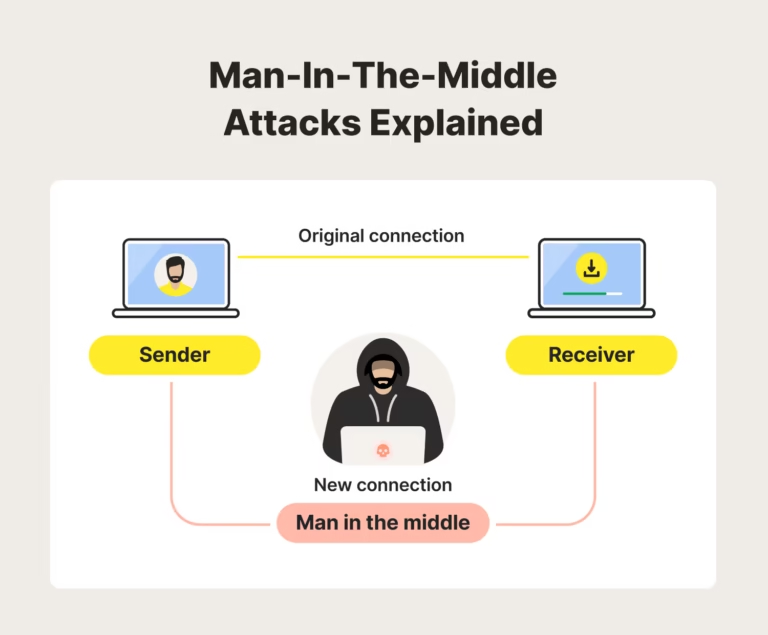
| MITM (Man-in-the-Middle) | Attacker positions their device between you and the gateway to read/alter traffic. | Odd certificate warnings, pages reloading, redirects to fake logins. | Always use HTTPS; enable a VPN tunnel; don’t click through TLS warnings. |
| Evil Twin | Fake hotspot that mimics the venue’s SSID to lure victims. | Multiple “Free_WiFi” names with similar signal strength. | Confirm exact SSID with staff; forget old networks so devices don’t auto-join. |
| DNS Spoofing | DNS answers are forged to send you to impostor sites. | Login pages look “off,” unexpected domains in address bar. | Use a VPN (tunnels DNS); enable DNS over HTTPS on browsers. |
| Session Hijacking | Stealing session cookies to impersonate your login. | Sudden account logouts or activity from new locations. | HTTPS only, VPN, re-login, revoke sessions, use 2FA. |
| Rogue Captive Portals | Fake “accept terms” pages that harvest credentials/cards. | Portal demands email/password or payment for “access.” | Give minimal info; verify portal domain; never share passwords you use elsewhere. |
Step-by-Step: The Safe Way to Use Public Wi-Fi
Ask & Verify
Ask staff for the exact network name (SSID) and whether there’s a captive portal. Check spelling, capitalization, and any special characters. Attackers love near-identical clones like CafeWiFi vs CaféWiFi.
Prepare Your Device
- Disable auto-join for networks you don’t trust; remove old SSIDs you never use.
- Turn off Bluetooth, AirDrop/Nearby Share unless actively transferring.
- Enable the system firewall (Windows Defender Firewall, macOS Firewall).
- Keep OS, browser, and apps updated; updates patch Wi-Fi and TLS flaws.
Connect, Then Immediately Tunnel
Join the verified SSID, complete any legitimate captive portal, then start your VPN before opening sensitive apps. A VPN encrypts your traffic (including DNS) so local snoops can’t read or tamper with it.
If the VPN won’t connect on the first try, switch protocol (e.g., WireGuard/NordLynx ↔ OpenVPN/Lightway) or change server.
Use HTTPS Everywhere
Always check for https:// and the lock icon. Modern sites use HSTS, but don’t assume. If you see any certificate error or the URL switches to http://, stop immediately.
Lock Down Logins
- Enable 2FA (prefer TOTP/hardware key over SMS).
- Use a password manager; never reuse passwords across sites.
- Avoid sensitive actions (bank transfers, admin changes) on unknown networks if possible.
Mind the Physical Layer
- Avoid unknown USB charge ports (risk of “juice jacking”). Use a data-blocking USB adapter or your own charger.
- Be aware of shoulder surfers and cameras; shield your screen and keyboard.
Disconnect Cleanly
- Log out of sensitive sites when done; close tabs that remain authenticated.
- “Forget this network” so your device won’t auto-connect in the future.
Device-Specific Settings That Help
iOS / iPadOS
- Settings → Wi-Fi → tap “i” → Private Wi-Fi Address ON (MAC randomization).
- Settings → Safari → Fraudulent Website Warning ON.
- Use iCloud Keychain or a reputable password manager for unique logins.
Android
- Wi-Fi → Network → MAC randomization ON (“Use randomized MAC”).
- Chrome/Browser → HTTPS-Only Mode (or use a browser with HTTPS-First).
- Disable Nearby Share and Bluetooth when not used.
Windows
- Windows Security → Firewall & network protection ON.
- Settings → Network → Wi-Fi → Random hardware addresses ON.
- Use a modern browser with HTTPS-Only and DoH enabled.
macOS
- System Settings → Network → Wi-Fi → advanced → Limit IP address tracking ON.
- Safari → Advanced → Show Develop menu → ensure HTTPS and certificate checks are default.
- Enable the built-in Firewall (Stealth Mode optional).
Captive Portals Without the Traps
Many venues display a captive portal (terms/accept button) before granting internet. Tips:
- Only provide the minimum info required; avoid reusing real passwords or your main email.
- If the portal asks for payment details, verify with staff and inspect the URL domain carefully.
- After passing the portal, activate your VPN and reload your apps.
neverssl.com to trigger it. Once you accept, turn on your VPN.VPNs on Public Wi-Fi: What They Do (and Don’t) Protect
A quality VPN encrypts your device-to-VPN traffic, preventing local snoops (or hotspot owners) from reading DNS queries and web traffic. It also helps avoid DNS spoofing and many MITM attempts.
Protects You From
- Local interception (sniffing) and easy MITM attempts
- Open-Wi-Fi DNS tampering/poisoning
- Session theft on unsecured sites
Does Not Replace
- HTTPS validation — you must still watch for certificate warnings
- Good passwords and 2FA
- OS/app updates and basic device hygiene
Travel Mode: Minimal Footprint, Maximum Safety
- Use a secondary email for captive portals and public registrations.
- Keep sensitive data in cloud vaults; enable remote wipe and full-disk encryption.
- Consider a separate “travel browser profile” with fewer extensions and hardened settings.
What To Do If You Clicked the Wrong Thing
- Disconnect from Wi-Fi and turn on cellular (or stay offline).
- Change passwords starting with email and financial accounts.
- Revoke sessions and sign out from all devices (Google, Microsoft, Apple, banks).
- Enable/Confirm 2FA; switch from SMS to authenticator where possible.
- Scan devices with reputable security tools; update OS and browsers.
- Monitor accounts for unusual logins; set up login alerts.
Myths vs Reality
| Myth | Reality |
|---|---|
| “HTTPS means I don’t need a VPN.” | HTTPS helps, but DNS and metadata can still leak on hostile networks. A VPN adds an encrypted tunnel and DNS protection. |
| “Airport Wi-Fi is safe because it’s branded.” | Branding doesn’t guarantee configuration or admin security. Treat all public Wi-Fi as untrusted. |
| “SMS 2FA is enough.” | Better than nothing, but SIM-swap and interception exist. Prefer app-based codes or hardware security keys. |
Quick Reference: Do’s and Don’ts on Public Wi-Fi
Do
- Verify SSID with staff, exactly
- Use VPN + HTTPS together
- Enable 2FA on important accounts
- Keep devices updated and firewalls on
Don’t
- Ignore certificate warnings
- Auto-join open networks
- Use unknown USB ports without a data blocker
- Re-use passwords or store them in plaintext
FAQs
Is public Wi-Fi safe if the password is required?
WPA2 passwords improve security but don’t make a network “trusted.” Other users on the same hotspot may still attack you. Use a VPN and HTTPS regardless.
Can a VPN stop every attack?
No single tool stops everything. A VPN protects the transport path, but you still need HTTPS, strong authentication, and software updates.
What about hotel ethernet or conference networks?
They often share the same risks (local snooping, rogue DHCP/DNS). Treat them as untrusted; use a VPN and avoid admin changes.
Will a VPN slow me down?
Good providers add minimal overhead. If speeds drop, switch to a nearer server or a faster protocol (WireGuard/NordLynx or Lightway).
This guide is educational. Always follow local laws and your organization’s security policies.