New to VPNs? Start Here — How VPNs Block Tracking & Fix Leaks
New to VPNs and online privacy? This guide explains how a VPN hides your IP address, how leaks happen, and how to fix them in minutes. By the end, you’ll know how to browse privately, avoid ISP monitoring, and stream without proxy errors or buffering.
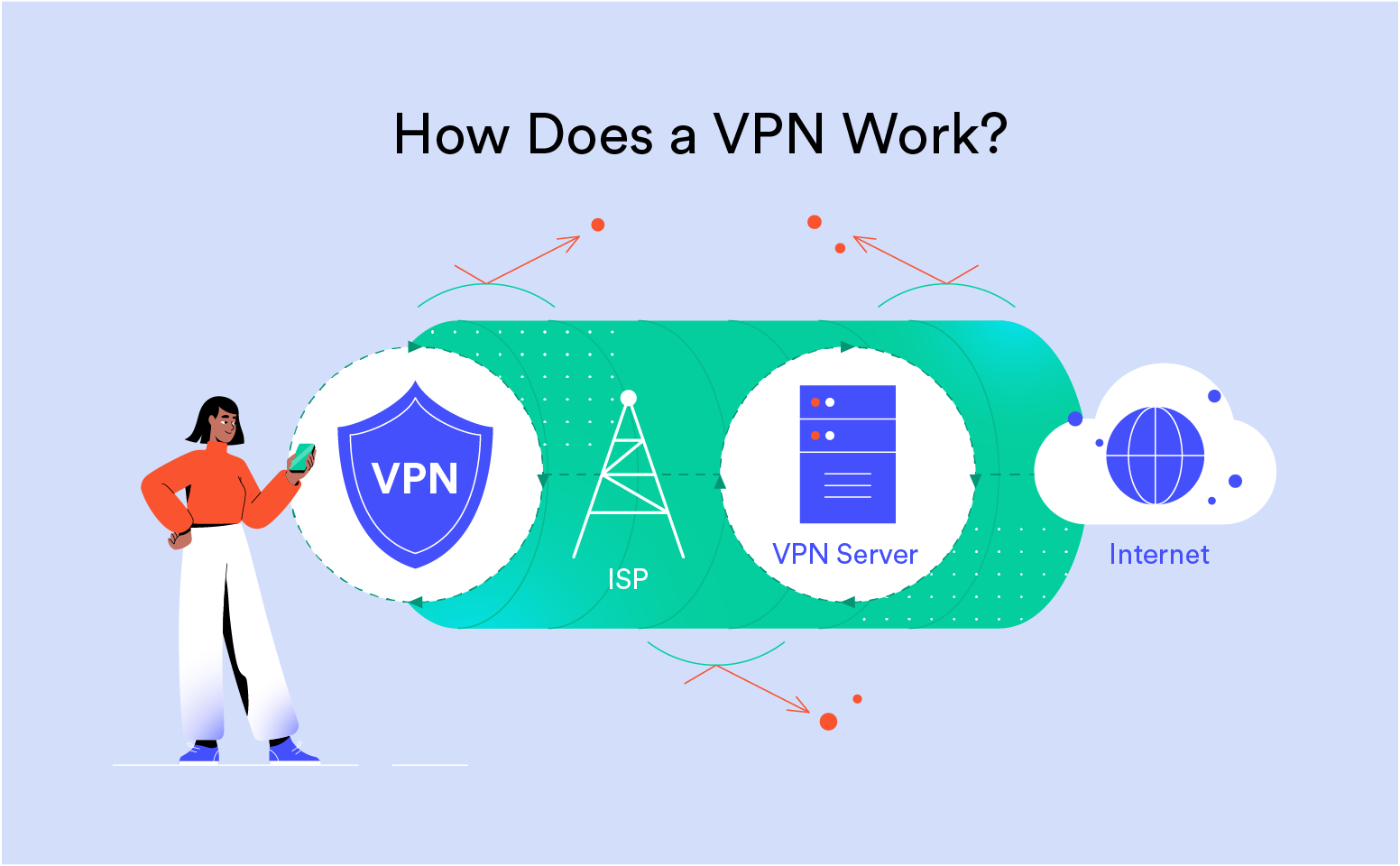
How a VPN hides your identity
A VPN (Virtual Private Network) replaces your public IP address with the IP of a remote server. When this happens, sites, apps and advertisers can no longer see where you live or which ISP you use. Your traffic becomes encrypted, preventing Wi-Fi owners,
internet providers, hotels, airports and cafés from monitoring which websites you visit.
What the website sees
- A different IP address (VPN server)
- A different region or country
- No real location tied to your identity
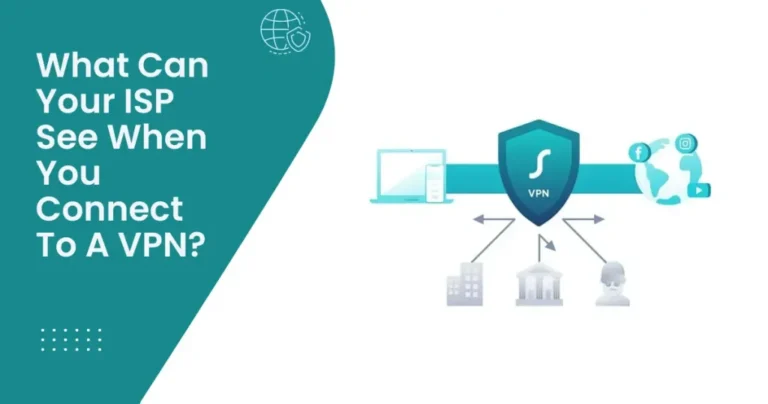
What the ISP sees
- Only encrypted traffic
- No website names or pages
- No streaming services you use
Why websites track you
Websites don’t just track you to show ads. They also profile devices, analytics, login behavior, location signals and browsing habits. The strongest identifier is still your public IP address. Even without cookies, it links sessions across different sites.
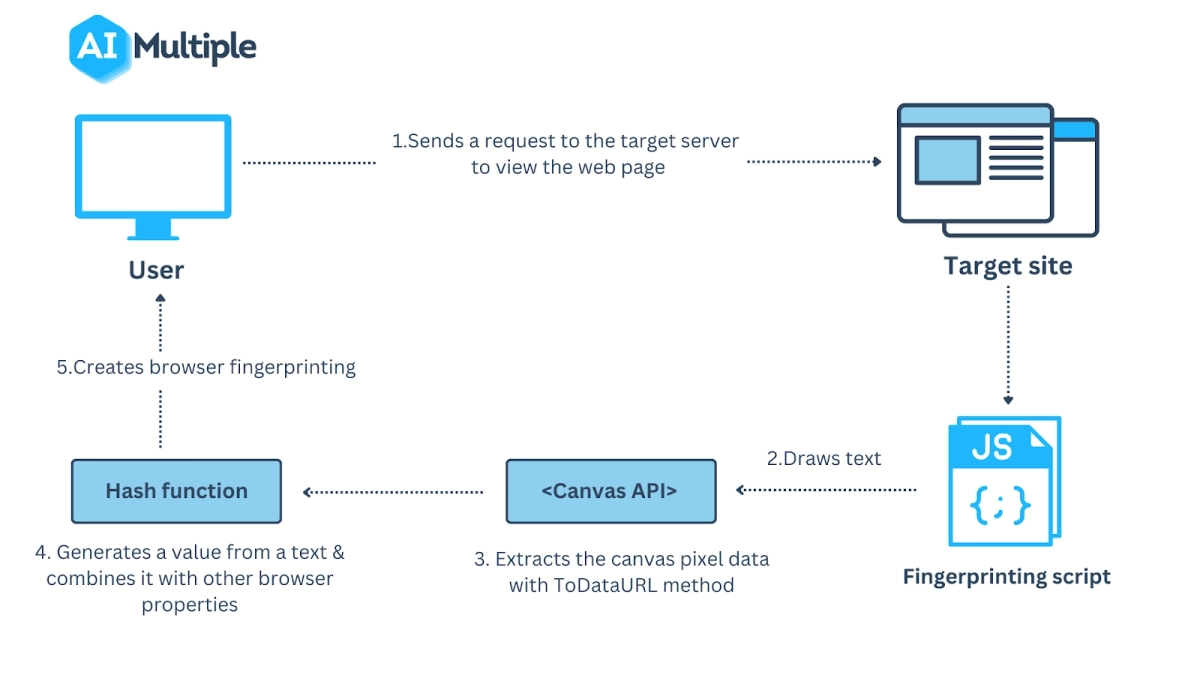
When you connect through a VPN, your IP becomes shared with thousands of other users. This makes fingerprinting far less accurate, and many advertising systems simply give up. For extra protection, modern browsers include tracking protection that blocks cookies, scripts,
and redirect trackers automatically.
Common VPN leaks and easy fixes
New VPN users often assume that turning it on is enough. Most of the time it is, but there are four leak types every beginner should know about. These leaks can reveal your location or identity even with the VPN running. Fixing them takes less than a minute.
| Leak Type | How it exposes you | Quick fix |
|---|---|---|
| IP Leak | Shows your real location | Switch server or enable kill switch |
| DNS Leak | ISP sees websites you resolve | Enable VPN DNS inside the app |
| WebRTC Leak | Reveals private/local IP | Disable WebRTC leak in browser settings |
| IPv6 Leak | IPv6 bypasses the tunnel | Disable IPv6 or use a VPN that tunnels it |
If a streaming app throws a proxy error, clearing cache and switching to another nearby city usually fixes it. Some services refresh working servers every few hours.
Simple setup for private browsing
You don’t need technical skills. Follow this small checklist once, and you’ll stay protected on every connection afterward:
1) Turn on the VPN + kill switch
Choose a nearby location for faster speeds. The kill switch prevents leaks if Wi-Fi drops.
2) Enable VPN DNS
This blocks ISP DNS logs and stops hostname tracking.
3) Browser tracking protection
Use Firefox ETP Strict or Brave (built-in ad & tracker blocking).
4) Re-test after connecting
Check IP, DNS, WebRTC and IPv6 leaks in a single scan.
Common mistakes new VPN users make
Many beginners assume that installing the app is enough. In most cases, it works immediately, but certain habits can still leak information. These are the most common mistakes we see when people test their connection on public Wi-Fi or while streaming:
Running the VPN only on some devices
If the phone is protected but the laptop is not, websites may still link identity signals through logged-in accounts, browser sync, or shared cookies. Turning the VPN on across all personal devices brings consistency and hides more of your digital footprint.
Closing the VPN before the browser
When a VPN disconnects while browsing, your real IP reconnects instantly. Keeping the VPN active until the browser fully closes ensures every tab stays inside the encrypted tunnel.
Using public Wi-Fi without encryption
On open networks, cafés, airports, hotels and libraries, other users on the same Wi-Fi can often intercept traffic if no encryption is applied. Starting the VPN before logging in to any site removes this risk completely.
Not checking DNS after connecting
Some devices keep using ISP DNS, which exposes visited hostnames. Running a quick DNS leak test once prevents weeks of accidental exposure.
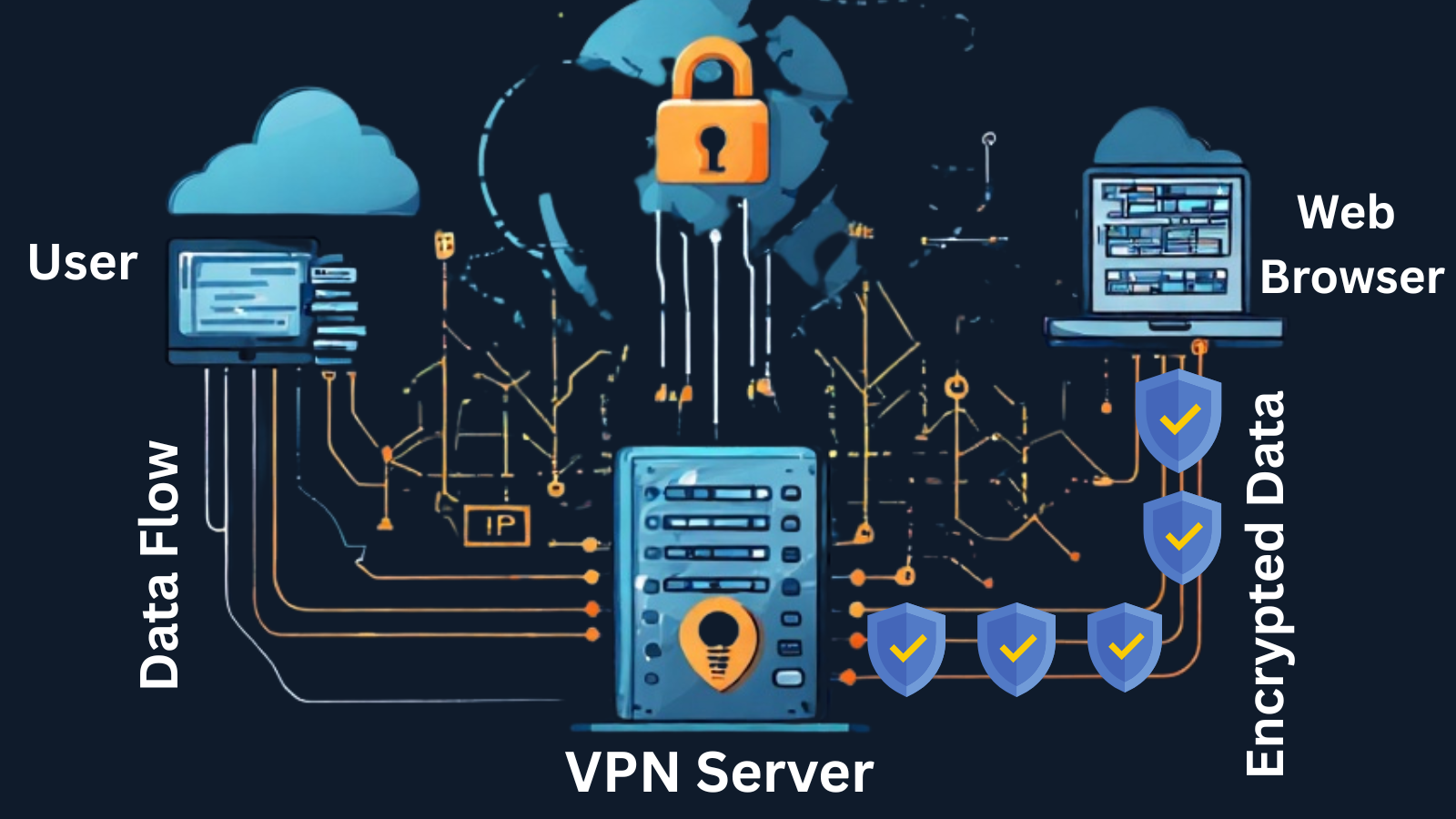
Fixing these problems takes seconds: enable VPN DNS, keep the kill switch on, and leave the VPN running while browsers or apps are open. Once configured properly, it becomes a set-and-forget privacy layer.
How VPNs help with streaming and region locks
Many people first discover VPNs while trying to watch shows or sports that aren’t available in their country. Streaming platforms use IP-based location checks to decide which library you can see. When the VPN changes your IP, the platform assumes you are in that region, allowing access to the full catalog.
Most major platforms — Netflix, Disney+, Prime Video, BBC iPlayer, Hulu and Hotstar — rely on these checks. If a server gets blocked, VPN providers rotate new servers in the background. Changing cities or restarting the streaming app usually fixes the error.
Another advantage is privacy while streaming. Your ISP can often see what services you watch and throttle video quality during peak hours. Encrypted traffic prevents targeted throttling and keeps HD or 4K streaming smooth even on busy networks.
Using Smart DNS for TVs, consoles and Apple TV
Some devices don’t support VPN apps, especially older Smart TVs, Apple TV, PlayStation and Xbox. For those, a feature called Smart DNS is extremely useful. Smart DNS routes only streaming-related traffic through remote servers while keeping the rest of the connection local. This preserves full Wi-Fi speed and avoids buffering.
Smart DNS works best for
- Apple TV
- PlayStation & Xbox
- Smart TVs without VPN apps
- Older routers that can’t run VPN firmware
Benefits
- No app installation
- Full Wi-Fi bandwidth
- No proxy errors once configured
- Region switching is instant
Setup takes less than a minute: enter the DNS values in your TV or console network settings, restart the app, and the new catalog loads automatically. You still get smoother streaming and no speed loss, even if the TV cannot run the VPN app directly.
How to verify your VPN is working properly
After enabling privacy settings, it’s smart to confirm everything is sealed. There are four quick checks you can do in less than one minute:
1) Check IP location
The public IP should display the VPN server region, not your home city. If it doesn’t change, switch servers or restart the app. This is the strongest signal for sites and advertisers.
2) Check DNS resolver
The resolver should match the VPN provider instead of your ISP. When DNS stays inside the tunnel, no hostname logs leak to the access provider.
3) Check WebRTC
WebRTC is used by video calling apps and browsers. If it leaks a private IP, disable local IP exposure or enable WebRTC leak protection.
4) Check IPv6
If your connection supports IPv6, make sure the VPN tunnels it or turn off IPv6 at the OS level. Otherwise, the IPv6 address may appear while IPv4 stays hidden.
Why privacy matters even if “you have nothing to hide”
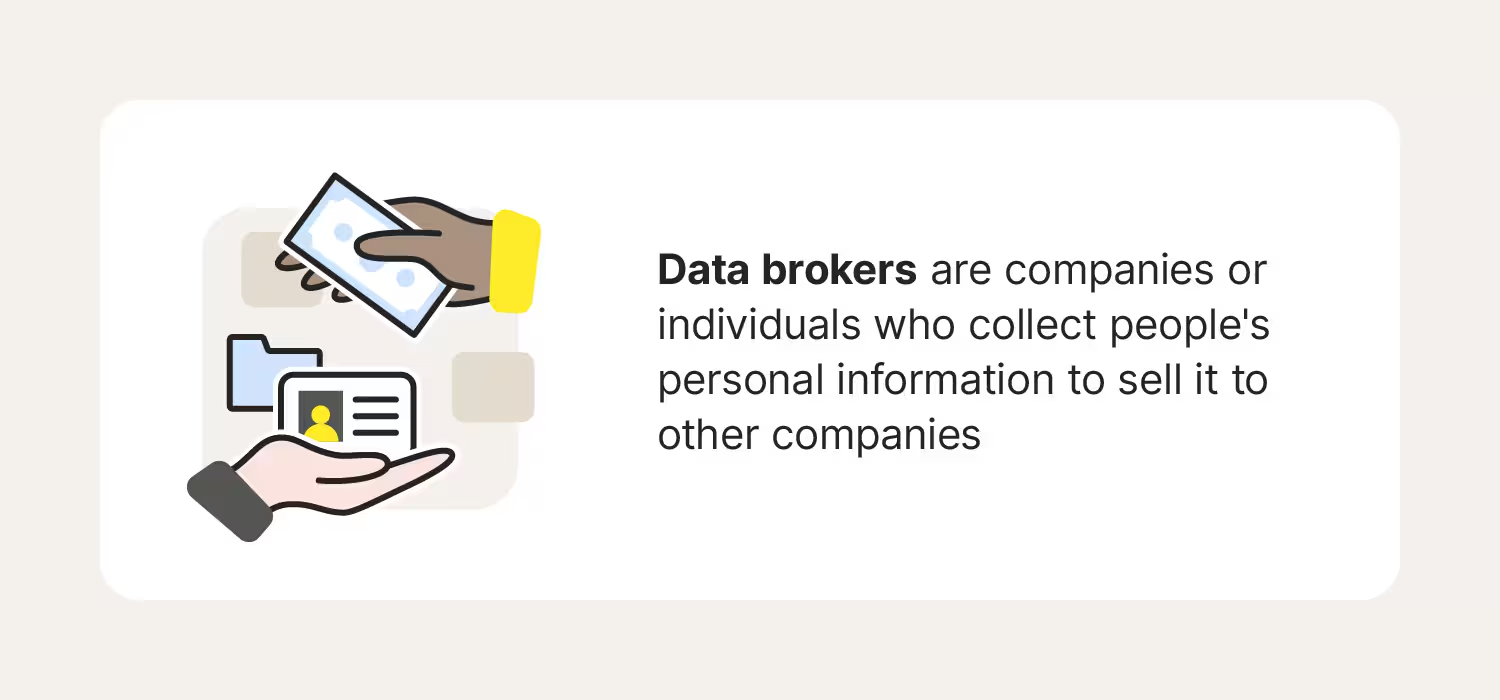
Some people argue privacy doesn’t matter if they are not doing anything wrong. The problem is that data collection forms permanent records. Advertising networks build profiles, streaming services track interests, ISPs log browsing patterns, and data brokers sell everything from location history to device identifiers. Even harmless browsing forms a lifetime trail.
A VPN removes the strongest identifier — your public IP — and reduces how much can be logged. When paired with a privacy-respecting browser and encrypted DNS, your online identity becomes fragmented. Over time, this prevents companies from forming accurate behavioral profiles.
Safe browsing on public Wi-Fi
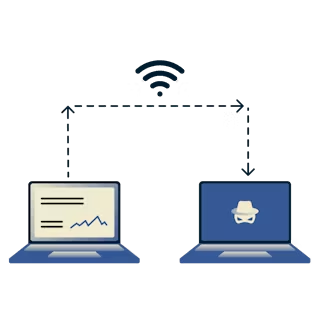
Airports, cafés, hotels and shopping malls provide “free” Wi-Fi, but many people don’t realize these networks can monitor traffic inside the same local network. Without encryption, other users can attempt to capture unprotected traffic or run man-in-the-middle attacks. Using a VPN closes that door completely.
Most identity theft cases on public Wi-Fi happen because users sign in to services on unencrypted connections. With a VPN, your traffic is sealed before it ever leaves your device. Even if someone is monitoring the network, the packets are unreadable.
If you frequently travel or work remotely, enabling the VPN at all times becomes a simple habit that eliminates risk across every open network you use.
Choosing the right protocol
Most VPN apps allow you to switch between protocols. For beginners, the fastest and most stable choice is a modern protocol based on WireGuard. It offers high speed, low battery drain and quick server switching. If a network blocks it, fall back to OpenVPN UDP.
Best for speed
WireGuard-based protocols provide fast throughput for streaming and downloading.
Best for restricted Wi-Fi
OpenVPN TCP can bypass strict firewalls in schools, workplaces and airports.
Keeping things simple
You don’t need to constantly switch servers, tweak settings or worry about complex configuration. Once the VPN is set up with kill switch, VPN DNS and leak protection, it runs quietly in the background. Keep the app updated, use secure browsers, and re-test occasionally.
Most new users report that after the first week, using a VPN stops feeling technical. It becomes part of daily internet use — like wearing a seatbelt. The connection is fast, the browsing is private, and streaming works the same way it always did, just with access to more content.